

How to Store Customer Quotes the Smart Way
A simple HubSpot method for capturing real voice-of-customer insights you’ll actually use
Your CRM is already full of powerful language. Every call, email, meeting, and support conversation is a chance for customers to say things your marketing team wishes they’d written.
But most companies treat these golden moments as disposable — they never get logged, tagged, or reused.
Here’s how to change that and turn your customer comments into CRM gold.
First, what to look for and why.
When customers explain their pain points, wins, objections, or “lightbulb moments,” they’re giving you:
- Sales messaging
- Landing page messaging
- Email copy
- Case study material
- Ad copy
- Onboarding improvements
- Support documentation
- Product feedback
The problem is, that if you don’t find a way to store and access these easily – they get lost. Buried in an ever growing CRM of contacts, companies, deals and . . . well you know. The comments become stories passed from one rep to another without any way of citing the source or understanding how that kudo was acheived.
But, when you set up a SMART (yes, that word) way to track them in your CRM, you’ll not only get the benefit of finding these gems easily, you’ll be able to use them in reports! You can measure the real value of your work with words from your customers.
“Your customer’s words are the most credible copy you’ll ever use.”
— Every copywriter ever
Here’s how to set it up.
Step 1: Create a “Quote Tag” Property
You only need one custom property — simple and flexible.
Using the Contact properties (you can also add to Company properties if needed)
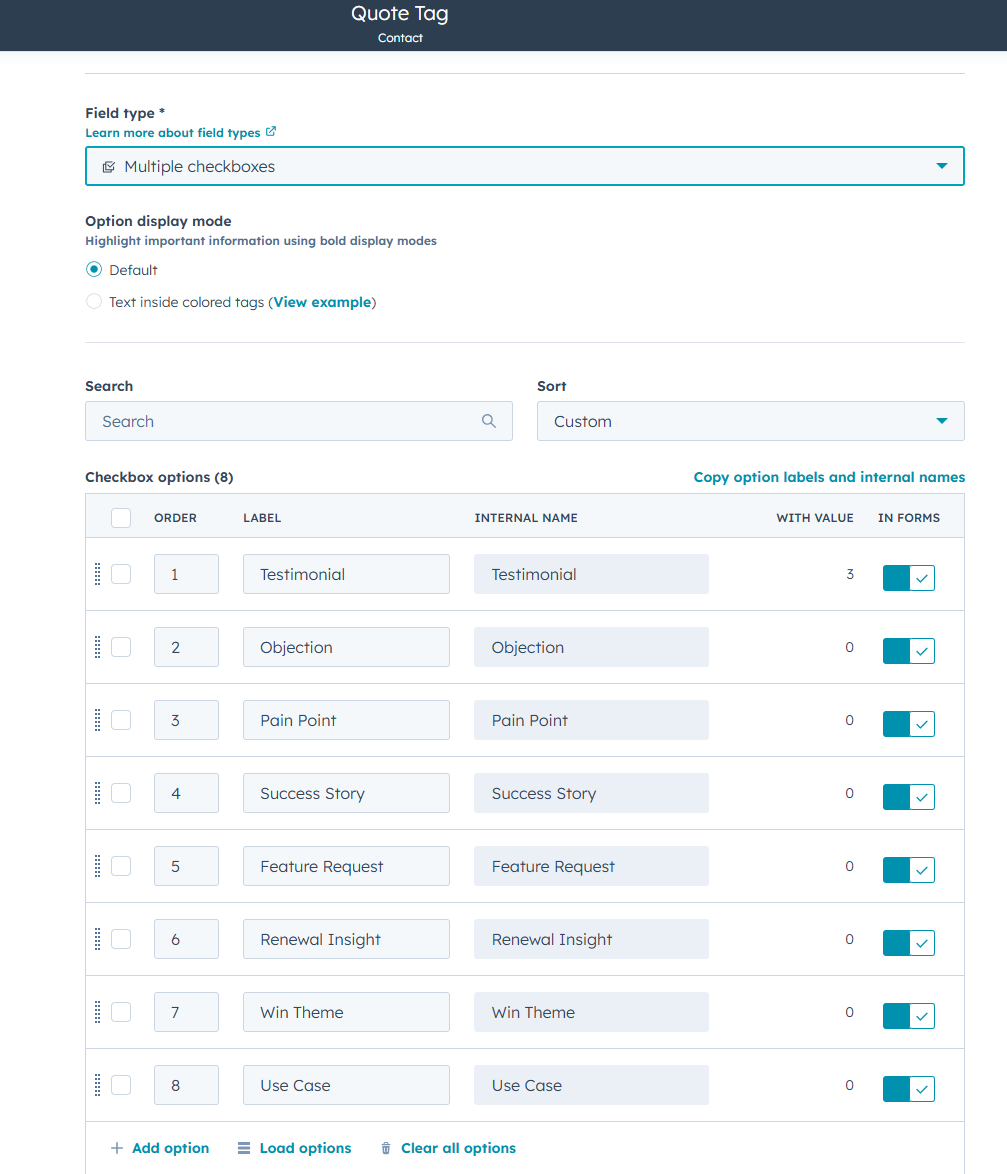
Name the property: Quote Tag
Property type: Dropdown or multiple checkbox (I suggest checkboxes, sometimes these quotes work under multiple headings, or you’ll get lucky enough to have more than one gem from a client)
Starter values:
- Testimonial
- Objection
- Pain Point
- Success Story
- Feature Request
- Renewal Insight
- Win Theme
- Use Case
(You can add more over time — this is just enough to get started.)
Step 2: Log the Quote as a Note
When a customer says something worth capturing…
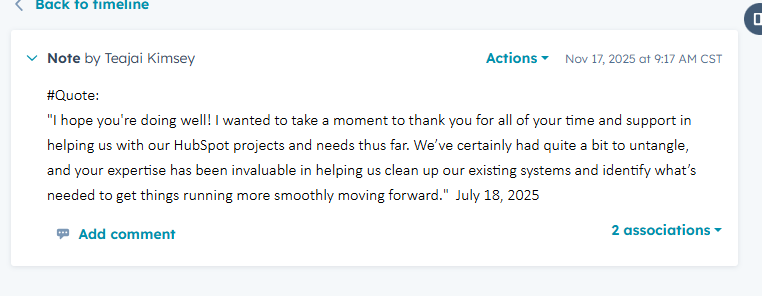
- Open their contact record >Click Note (Under the contact name or in the center activities)
- Paste the exact quote — word for word
- Add a #quote for extra context – you’ll see why in a minute
- Add context (what call, what problem they solved, what they were reacting to)
This is where your future marketing copy comes from.
Step 3: Tag the Quote
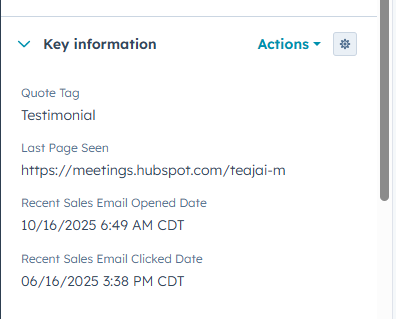
In the same Note, scroll to the right-hand sidebar and update your property:
- Quote Tag → choose the correct tag
- If the quote fits multiple themes, select more than one
- If it fits none, add a new option to the property as needed.
Now that single quote becomes part of your structured data.
Step 4: Search for it!
In the top left of your CRM you can now search for quotes you’ve saved by using the #quote AND by using the quote property. Now you can find every quote on:
- People who love your onboarding
- People who objected to price
- People who had a breakthrough moment
- People who asked for a feature
- People who renewed because of ROI
You can also filter by Note content (HubSpot’s global search), which lets you find quotes containing specific phrases like:
- “ROI”
- “Saved us”
- “We switched because…”
- “We chose you over…”
Step 5: Make It Reportable (Optional but powerful)
If you’ve come this far, why not take it one step further and create a simple Contacts report:
- Quote Tag
- Last Activity Date
- Lifecycle Stage
- Associated Deal
Now you can see:
- Which customer segments rave the most
- Which stages generate which types of quotes
- Which quotes correlate with closed-won deals
- Which objections appear early vs late
This is gold for revenue teams and marketing alike! You can turn support comments into case studies, capture objections at scale, use “why they renewed” in renewal sequences and track product feedback.
This is one of the simplest systems you can add to HubSpot — and one of the most useful. Start now by adding that Quote Tag property, logging those quotes as notes, tag them and start using them!
That’s one thing that works!
Want help building a Quote Tag taxonomy or a “voice of customer” dashboard inside HubSpot? Get in touch!
A simple HubSpot method for capturing real voice-of-customer insights you’ll actually use
Your CRM is already full of powerful language. Every call, email, meeting, and support conversation is a chance for customers to say things your marketing team wishes they’d written.
But most companies treat these golden moments as disposable — they never get logged, tagged, or reused.
Here’s how to change that and turn your customer comments into CRM gold.
First, what to look for and why.
When customers explain their pain points, wins, objections, or “lightbulb moments,” they’re giving you:
- Sales messaging
- Landing page messaging
- Email copy
- Case study material
- Ad copy
- Onboarding improvements
- Support documentation
- Product feedback
The problem is, that if you don’t find a way to store and access these easily – they get lost. Buried in an ever growing CRM of contacts, companies, deals and . . . well you know. The comments become stories passed from one rep to another without any way of citing the source or understanding how that kudo was acheived.
But, when you set up a SMART (yes, that word) way to track them in your CRM, you’ll not only get the benefit of finding these gems easily, you’ll be able to use them in reports! You can measure the real value of your work with words from your customers.
“Your customer’s words are the most credible copy you’ll ever use.”
— Every copywriter ever
Here’s how to set it up.
Step 1: Create a “Quote Tag” Property
You only need one custom property — simple and flexible.
Using the Contact properties (you can also add to Company properties if needed)
Name the property: Quote Tag
Property type: Dropdown or multiple checkbox (I suggest checkboxes, sometimes these quotes work under multiple headings, or you’ll get lucky enough to have more than one gem from a client)
Starter values:
- Testimonial
- Objection
- Pain Point
- Success Story
- Feature Request
- Renewal Insight
- Win Theme
- Use Case
(You can add more over time — this is just enough to get started.)
Step 2: Log the Quote as a Note
When a customer says something worth capturing…
- Open their contact record >Click Note (Under the contact name or in the center activities)
- Paste the exact quote — word for word
- Add a #quote for extra context – you’ll see why in a minute
- Add context (what call, what problem they solved, what they were reacting to)
This is where your future marketing copy comes from.
Step 3: Tag the Quote
In the same Note, scroll to the right-hand sidebar and update your property:
- Quote Tag → choose the correct tag
- If the quote fits multiple themes, select more than one
- If it fits none, add a new option to the property as needed.
Now that single quote becomes part of your structured data.
Step 4: Search for it!
In the top left of your CRM you can now search for quotes you’ve saved by using the #quote AND by using the quote property. Now you can find every quote on:
- People who love your onboarding
- People who objected to price
- People who had a breakthrough moment
- People who asked for a feature
- People who renewed because of ROI
You can also filter by Note content (HubSpot’s global search), which lets you find quotes containing specific phrases like:
- “ROI”
- “Saved us”
- “We switched because…”
- “We chose you over…”
Step 5: Make It Reportable (Optional but powerful)
If you’ve come this far, why not take it one step further and create a simple Contacts report:
- Quote Tag
- Last Activity Date
- Lifecycle Stage
- Associated Deal
Now you can see:
- Which customer segments rave the most
- Which stages generate which types of quotes
- Which quotes correlate with closed-won deals
- Which objections appear early vs late
This is gold for revenue teams and marketing alike! You can turn support comments into case studies, capture objections at scale, use “why they renewed” in renewal sequences and track product feedback.
This is one of the simplest systems you can add to HubSpot — and one of the most useful. Start now by adding that Quote Tag property, logging those quotes as notes, tag them and start using them!
That’s one thing that works!
Want help building a Quote Tag taxonomy or a “voice of customer” dashboard inside HubSpot? Get in touch!