Why Your Team Keeps Rebuilding HubSpot Fields That Already Exist
One Thing that Works
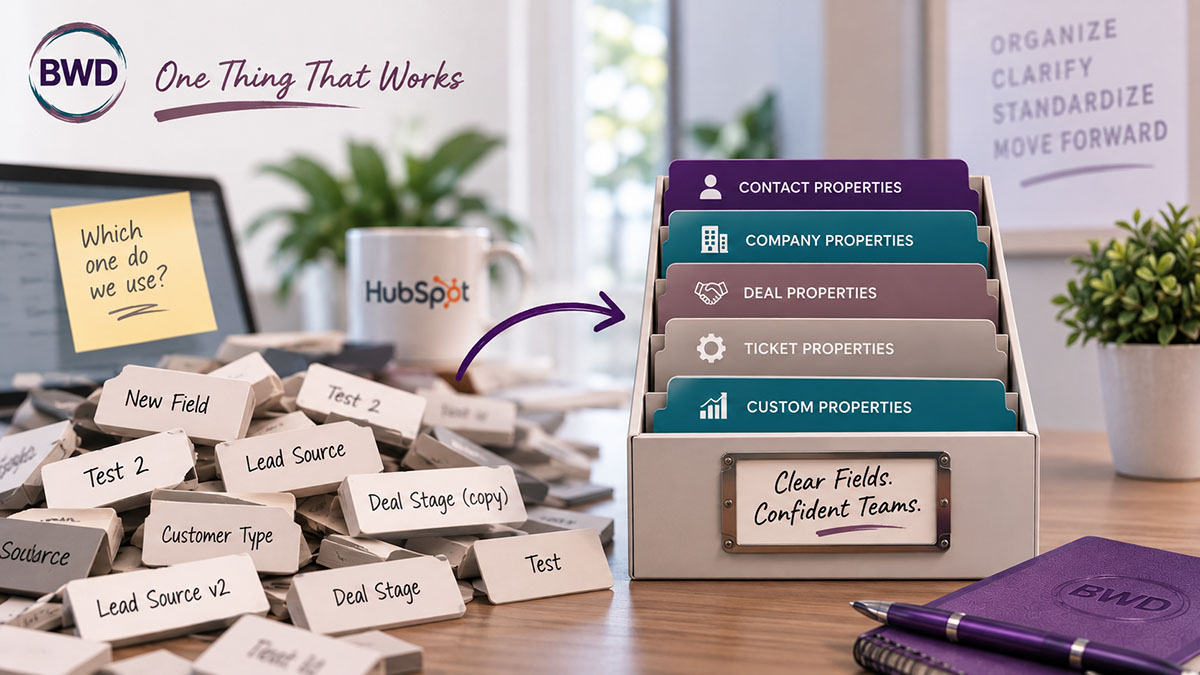
A client asked me last week why two people on her sales team had built nearly identical custom properties three months apart — “Lead Source” and “Lead Source (New).” Neither of them knew the other one existed. I pulled up her portal. Fifty-some custom properties, all dumped into whatever default group HubSpot handed them, and not one Description field filled in.
That’s not a data problem. That’s a name-tag problem.
Nobody skips these fields on purpose. They skip them because HubSpot treats Group and Description as an afterthought in the property creation flow — two quick fields between “name it” and “pick the type.” So people name it, pick the type, and move on. The property works. It saves data. Nothing looks broken.
Except six months later, someone on the team creates “Lead Source 2” because they didn’t know “Lead Source” already existed. Or a rep hovers over a property called “Qualified Date” and has no idea if that means the date a lead was marked qualified, or the date someone’s supposed to follow up. Nobody’s dumb here — the CRM just never told them.
The one thing: treat Group and Description as required fields, not optional ones, every time you create or touch a property.
The one thing: treat Group and Description as required fields, not optional ones, every time you create or touch a property.
Groups are the category a property lives in — you’ll see them as the collapsible sections on a record (“Contact Information,” “Deal Information,” whatever you’ve named them). Left alone, HubSpot piles everything into a handful of generic defaults. Organized deliberately, they turn a 200-property portal into something a new hire can actually navigate: Lifecycle & Scoring here, Sales Process there, Marketing Attribution over here. You’re not just tidying up — you’re building the map that tells people where to look before they build a duplicate property out of frustration.
Description does something different. It’s the one place in the entire CRM where you can leave instructions directly on the field itself — not in a Notion doc nobody opens, not in a Slack thread from eight months ago, but right there, hovering over the property, every time anyone touches it. “Set automatically by the lead scoring workflow — do not edit manually.” “Use MM/DD/YYYY format.” “This is the renewal date, not the signed date.” That’s institutional knowledge that survives you leaving the room, changing roles, or forgetting your own logic three months from now.
Why this actually works: CRM adoption doesn’t fail because people don’t want to use the tool right. It fails because the tool doesn’t explain itself, and everyone’s too busy to ask. A well-named group and a one-sentence description answer the question before it gets asked — which means less time spent in Slack threads playing CRM archaeologist, and a lot less duplicate data from people rebuilding fields that already exist under a different name.
What to try: Pick your five most-used properties — the ones on every deal, every contact, every ticket your team touches daily. Go add a real description to each one. Not a restatement of the label — an actual instruction. Then look at what group they’re sitting in, and ask whether that grouping makes sense to someone who didn’t build the portal.
It’s a fifteen-minute fix. It’s also the difference between a CRM your team trusts and one they route around.
Teajai “TJ” Kimsey has been in email marketing since 2005 — credentialed early enough to be featured in a Wichita Eagle story on the shift from direct mail to digital — and is now a certified HubSpot Solutions Partner running BWD LLC, a fractional HubSpot admin practice for small to mid-size B2B companies. With 25+ years of digital marketing experience and Upwork Top Rated Plus status (top 3% worldwide), TJ works directly with every client — no account handoffs, no junior staff. View her portfolio or get in touch to talk through your email deliverability.
Does your team actually know the difference, and does your setup match how deals really get worked?
Frequently Asked Questions
What's the difference between a HubSpot property group and a property description?
A group is where a property lives — it controls what section of the record it shows up under (Deal Information, Lead Scoring, whatever you’ve named your groups). A description is a note attached to the property itself, visible on hover, explaining what it’s for and how to use it. Groups organize; descriptions explain.
Do property groups affect reporting or workflows?
No. Groups are purely organizational — they change where a property appears on a record, not how it behaves in a workflow, report, or list filter. You can reorganize groups freely without breaking anything downstream.
How many property groups should a HubSpot portal have?
There’s no fixed number — it depends on how many custom properties you’re managing. The test isn’t a count, it’s whether someone new to the portal could guess which group a property lives in before they go looking. If your groups still make sense to a person who didn’t build them, you have the right number.
Who can create or edit property groups and descriptions in HubSpot?
Anyone with Super Admin permissions, or a custom permission set that includes property management, can create groups and edit descriptions. It’s worth locking this down to a small group of people — not because it’s risky, but because unmanaged property creation is exactly how you end up with “Lead Source” and “Lead Source (New).”
Do I need to add a description to every existing property, or just new ones?
Just new ones, going forward, is fine as a policy — but it’s worth carving out time to backfill your most-used properties. You don’t need to touch all fifty at once. Start with the ones every rep or marketer opens weekly.
Get in Touch