

Stop Hunting for Info Inside Your Own CRM
Most HubSpot record views were built for everyone — which means they work perfectly for no one.
You’re on a call with a customer. They mention an invoice they’re waiting on. Or you’re catching up with a contact and you want to know what deals are in play before you say something awkward. Or your sales team is looking at a contact record and has no idea this person is also tied to an active project.
All of that information lives in HubSpot. It’s just not where you’re looking.
This is one of those small friction points that nobody talks about but everybody feels — and once you fix it, you’ll wonder how you ever worked any other way.
It starts with the Contact record
When you’re looking at a contact, the right-hand panel can show you a lot more than name and email. Think about what would actually be useful to see right there without clicking away:
- Open or recently closed deals associated with that contact
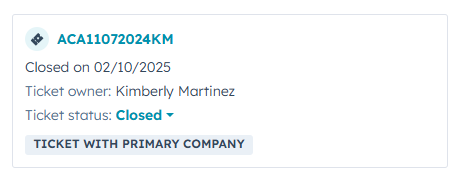
- Active projects or tickets they’re connected to
- Outstanding invoices or payment status
- Their company’s tier, region, or account type
- Any custom fields you use to track relationship status or priority
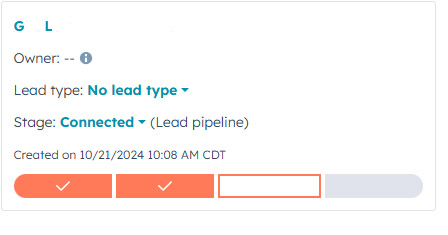
- Lead status or lifecycle stage at a glance
Most teams are staring at a contact record that shows them… the contact’s email. Which they already have.
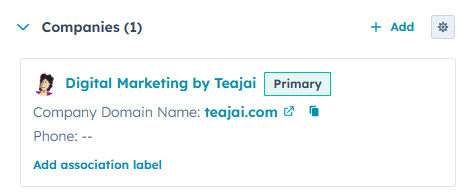
HubSpot Leads
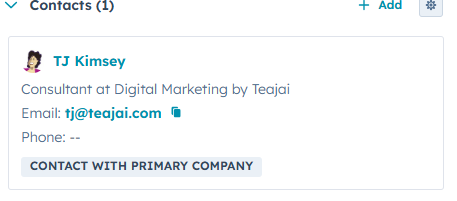
HubSpot Contact Info
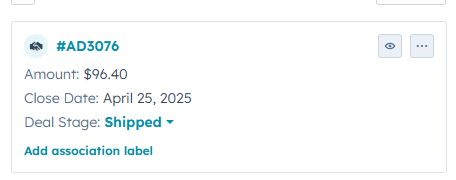
HubSpot Deal Info
Screenshot 2026-03-13 082035
lead card
The same problem lives inside your Deal records
Flip it around. You’re working a deal and you need to reach someone tied to that account. You know it’s in HubSpot. Somewhere.
So you go hunting.
The deal record right-hand panel can be set up to show you:
- Every associated contact with their direct phone number and email
- Job titles and roles so you know who’s who
- Company details like main phone number, industry, or size
- Custom fields like “Decision Maker” or “Primary Contact”
- Any other object cards relevant to how your business works
The default layout isn’t wrong — it’s just generic. Built for everyone, optimized for no one.
What’s actually possible
You can control which cards appear in that right-hand panel, what order they show up in, and which specific properties display inside each card. If a card is just taking up space and you never look at it, it doesn’t have to be there.
The goal is simple: open a record and immediately see the context you need to have a smarter conversation — without clicking around to find it.
Getting this set up isn’t complicated, but it does require knowing where to go and what’s worth adding once you get there. If you want to walk through it, let’s connect — it takes about ten minutes and the payoff is immediate.